
Yes, you can work with video with AI
If you already use AI tools such as ChatGPT or Claude for writing and research, video might feel like a completely different kind of task. It does not have to be.
Give OpenAI Codex or Claude Cowork a video file and a clear request, and it can inspect the footage, map the main moments, recommend clips, and create a new video file. You can ask for a 30-second vertical edit, a contact sheet, captions, a transcript, or a technical check of the finished export. These are just the tasks we tested, and both tools completed these tasks successfully; other workflows may also be possible.
You do not need to become a video editor to try this. The AI can coordinate media software such as FFmpeg behind the scenes. You still choose the story and review the result before anyone sees it.
If your team already edits in Adobe Premiere, you may get more value by testing its AI features instead of using a new video editing workflow. We cover that option later in the guide.
If your team wants to compare several video models without setting up each provider separately, OpenRouter is another option. It takes more technical setup, but AI coworker and automation tools can help with the API request.
What we tested
We tested OpenAI Codex and Claude Cowork in their desktop apps with the same 4-minute-36-second public undercover slaughterhouse video.
Each tool was asked to:
- Inspect the complete video.
- Write a factual summary and timestamped beat map.
- Recommend a 30-second story for social media.
- Create a finished 9:16 vertical video.
- Check the export and produce review materials.
Both tools completed the job: each produced a video that was exactly 30 seconds long, 1080 × 1920 pixels, and ready to play as a standard MP4. The outputs were technically correct, but neither was award-winning creative work. In our review, both edits were more matter-of-fact than inventive.
These screenshots show the Claude Cowork test itself: the review work inside the chat and the files it returned.
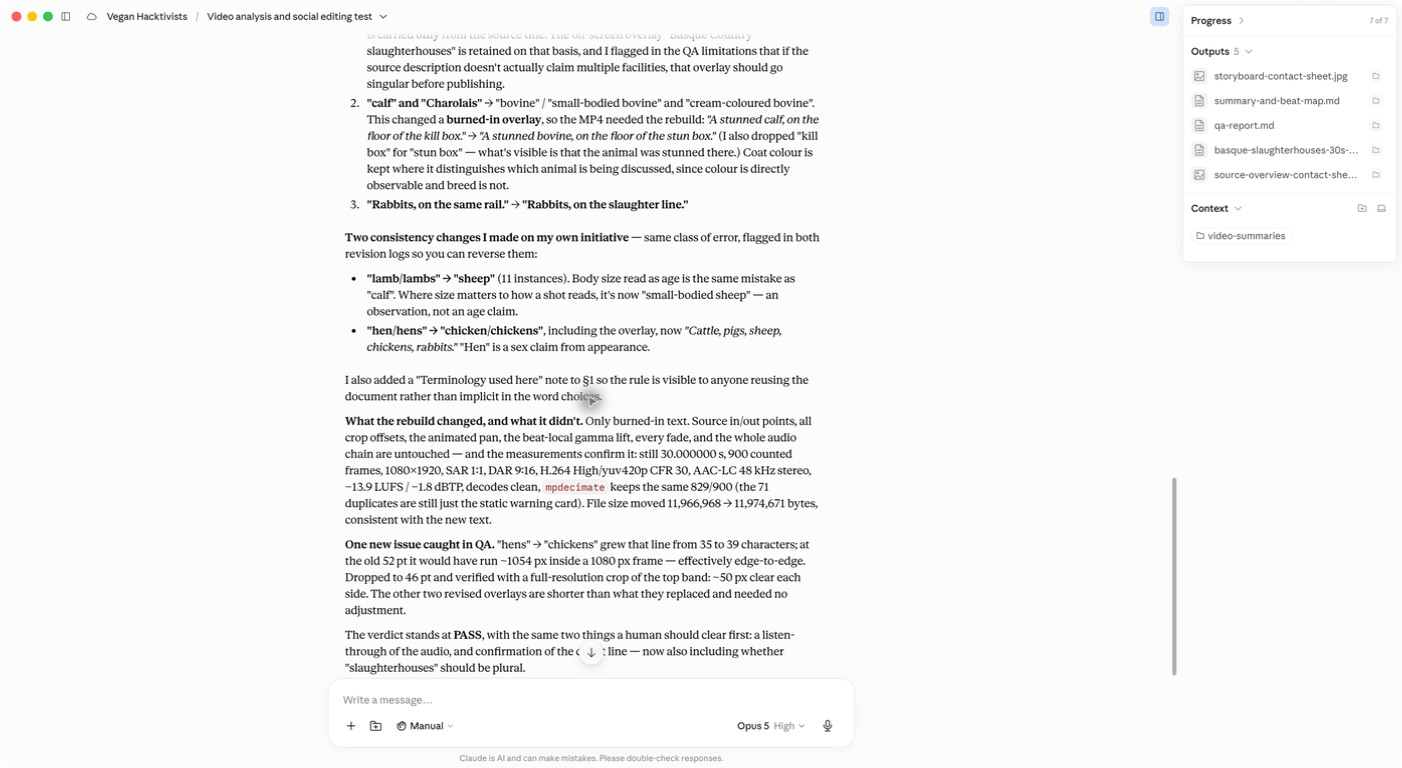
Claude reviewed its own wording, corrected claims that went beyond what the footage showed, rebuilt the video, and checked the revised export. The model used for this test was Opus 5 High.
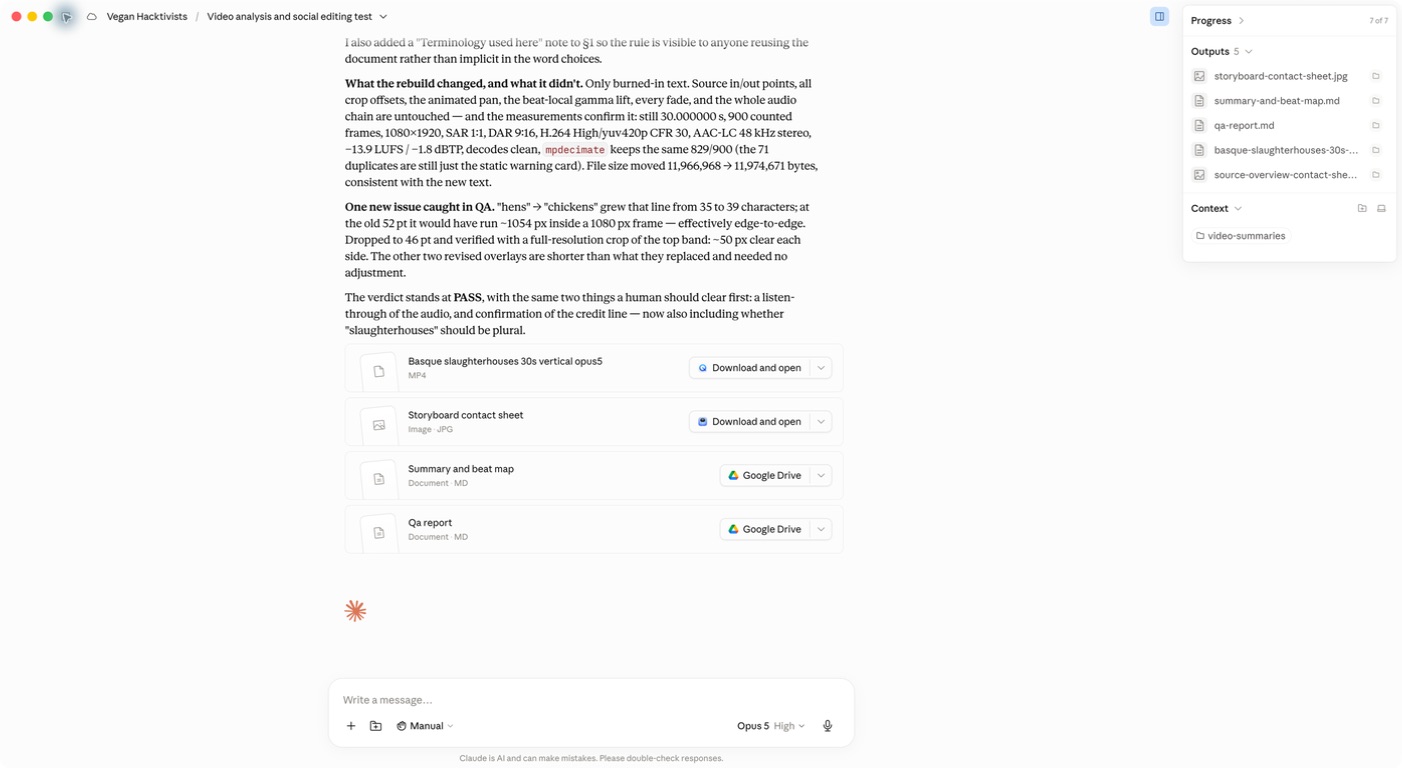
The completed task returned the 9:16 MP4, a storyboard contact sheet, a timestamped beat map, and a technical quality-assurance report in the connected folder.
What you can ask the AI to do
Understand the footage
- Summarize what happens in the video.
- Create a timestamped list of scenes or events.
- Describe what is visible at a specific time.
- Transcribe speech and identify unclear sections.
- Find on-screen titles, credits, or captions.
- Flag graphic content that may need a warning.
Find material for a campaign
- Identify possible clips for a 15-, 30-, or 60-second edit.
- Suggest an opening, middle, ending, and call to action.
- Find appearances of a person, animal, object, or location. Treat the results as leads: our tests were not accurate enough for research use without human review.
- Build a shot list or storyboard before editing.
Create files
- Trim and join clips.
- Turn landscape footage into a vertical social video. Automatic cropping was imperfect in our tests, so review every shot.
- Add a content warning, captions, titles, or source credit.
- Create a contact sheet showing frames from across the finished video.
- Check the duration, dimensions, codecs, and audio track.
This can all happen within one task. Start with analysis, choose the direction, then ask the tool to make the file.
What you need for this workflow
- Access to OpenAI Codex or Claude Cowork. We tested both in their desktop apps with local files. ChatGPT Work is a separate tool available on web and desktop; file access differs depending on where you use each tool.
- A video file you own or have permission to use.
- A dedicated folder for the source, working files, and exports.
- Enough space on your computer for new video files.
Add the video directly to the task or, in a desktop app, connect the folder that contains it. Ask the AI to confirm that it can inspect the complete file, including the visuals, audio, and technical details.
If a required media tool is missing, ask the AI to explain what it needs before continuing. In our tests, both systems handled the workflow once the source video was available as a local file and the required media tools were available.
Step 1: Ask the AI to understand the video
Use this prompt before asking for an edit:
Outcome: Help me understand this video and decide how I could use it.

Source material: [UPLOAD THE VIDEO FILE OR POINT TO IT IN AN APPROVED CONNECTED FOLDER.]

First, confirm that you can inspect the complete file. Tell me whether you can access:
- Visual frames across the full video
- Audio
- Duration, dimensions, frame rate, and other technical details
- Existing captions or a transcript

Then provide:
1. A concise factual summary
2. A timestamped beat map of the main scenes
3. Three possible sections for a 30-second social edit, with the purpose of each
4. Any concerns about graphic content, privacy, consent, copyright, or attribution that I should review
5. Anything you could not verify

Describe what is visible or audible. Do not guess intent, identity, location, animal age or breed, or whether separate scenes happened in sequence. Do not edit, publish, upload, or overwrite anything yet.
Read the beat map and watch the suggested sections in the original video. Tell the AI which option you want, or ask it to combine parts of two options.
Step 2: Ask for the social edit
Once you have chosen the clips, use a prompt like this:
I own this footage or have permission to edit it. Keep the source file unchanged.

Create a 30-second vertical social video using this approved direction:
[PASTE THE CHOSEN IDEA OR TIMESTAMPS.]

Requirements:
- Exact duration: 30 seconds
- Vertical size: 1080 × 1920
- Format: MP4
- Content warning: [TEXT OR NONE]
- Captions: [YES / NO]
- Source credit: [CREDIT TEXT]
- Save the export with a new, descriptive filename
- Do not publish or upload it

Preserve the meaning of the source. Do not invent dialogue, events, or connections between separate scenes.

Before you finish:
1. Check the complete export for technical errors.
2. Create a contact sheet showing the video from beginning to end.
3. Check the frames around every cut, title, warning, and text change.
4. Report any crop, timing, audio, wording, or attribution decisions I should review.

Return the video, contact sheet, and a short QA report together.
The technical details in this prompt are common defaults. Change them when your organization or distribution channel needs something else.
Step 3: Watch the finished video
This step is for the humans.
Open the export and watch it from beginning to end with the sound on. Check:
- Does the edit show what the text says it shows?
- Did the crop cut out an animal, person, subtitle, or important action?
- Are the warning, captions, and credit readable for long enough?
- Does the audio begin and end cleanly?
- Did the AI imply that separate scenes happened at the same place or time?
- Is anything visible or audible that should remain private?
Contact sheets help, but they do not replace watching the video. They are good at revealing broken crops, missing warning cards, text overflow, and overlays that stay on screen too long.
Claude caught and corrected several problems during its own review. This test shows that AI can catch some of its own errors when prompted to inspect its output, but not all of them. A later human review found unsupported wording about the footage. Technical checks and editorial review catch different problems. Match the checks to the risk of the video; anything published still needs human review.
What we learned from using both tools
A local video file is the easiest starting point. Give the tool an approved source file or working copy instead of expecting it to retrieve a video from another platform.
A transcript may not be the best starting point. For dialogue-led footage, a transcript can speed up search and rough cuts. Our test footage relied mostly on images and location sound, and one transcription attempt produced words that were not present. We switched to visual frames and used the original audio for human review.
Different tools make different editorial choices. ChatGPT and Claude produced usable options from the same source, with different strengths and tradeoffs. Neither choice was objectively correct.
Specific QA instructions improve the result. Asking for a contact sheet and frames around every edit boundary helped the tools catch problems that a basic “make me a video” prompt would miss.
A finished file still needs a person. The AI can create the edit. A campaigner remains responsible for the story, claims, warning, credit, privacy, and decision to publish.
Start with one non-sensitive video you already understand. Ask for a summary, beat map, and one short edit. If the test does not save time or improve the work, that is useful information. Look at how other teams use AI with video, try a different tool or approach, or wait a few months and test again. Each organization has its own editing process and quality standards.
Compare video models with OpenRouter
Teams with technical support can use OpenRouter to send the same video and prompt to several compatible AI models through one API. The main benefit is comparison: staff can see how multiple models describe the footage, compare candidate timecodes, and identify where the results agree or conflict. Video input is currently available through the API rather than OpenRouter’s chat interface. Its video input guide includes code examples, supported formats, and troubleshooting.
You do not have to interact with the API manually if you don’t want. In the desktop app, ChatGPT Work can use an integrated terminal, while Claude Cowork can run code and shell commands. You can ask either tool to read the OpenRouter guide, prepare a small test, run it, and explain the response. (That’s how we used OpenRouter for these tests.) For a repeatable workflow, Make, Zapier, or n8n can call the same API through the OpenRouter module or an HTTP request step. You’ll use an OpenRouter API key to set up the connection.
In our public-footage pilot, three models independently found the same broad sequences within a few seconds of one another. Their timecodes were accurate enough to build a local 19-second rough cut. The test gave the reviewer a short list of candidate moments instead of starting from the beginning of the video each time.
The models also disagreed about possible injury, human contact, and audio. A loaded query about animals that were “possibly dead” flagged sleeping pigs. Ask for observable details and uncertainty. Review the source frames and surrounding footage before using a model’s finding in research, campaign copy, or an edit.
Before sending sensitive footage, review OpenRouter’s zero-data-retention controls and each model provider’s terms. We enabled zero-data-retention routing and disabled provider fallback during our pilot, but the video still passed through OpenRouter and the selected model provider. A zero-data-retention policy does not make the processing local. Your organization should approve the vendors, account settings, and data handling first.
Be careful with sensitive footage
Keep the original file unchanged and work from a copy. Use a dedicated folder so the AI only sees the material needed for the task.
Local file access does not always mean local-only processing. Anthropic states that Claude Cowork sessions run in the cloud and that files reached through Claude Desktop are processed on Anthropic’s servers. Check the current privacy terms, organizational account settings, storage rules, and deletion controls before using confidential footage in any AI service. Start with Data security and privacy basics and Is my data used for training?.
Keep source filenames and timecodes with every selected clip so another person can trace it back to the source.
If your team uses Adobe Premiere
We researched the current AI-assisted video features in Premiere, but we have not yet tested them ourselves. Treat this section as a shortlist for your own trial, not a VH product verdict.
- AI Assistant is a beta feature that can organize footage, generate transcripts and markers, and build stringouts or rough assemblies from natural-language requests. Adobe recommends testing it on duplicate projects or new media rather than client work.
- Media Intelligence lets editors search footage with natural-language descriptions such as “animal lying apart from the group.” Adobe says this visual analysis happens locally on the computer.
- Speech to Text and Text-Based Editing support transcript search and dialogue-led rough cuts.
- Object Masking can select and track a person or object for effects such as blur. Adobe currently labels the feature as beta.
- Auto Reframe can duplicate a sequence for a vertical or square format and follow the main action.
If Premiere is already part of your workflow, these features may reduce the need to send footage to another service. Test them on a non-sensitive sample first. Search results, transcripts, masks, and automatic crops all need human review—especially with dark footage, rapid movement, crowded scenes, or multiple subjects. Review sensitive redactions frame by frame before publishing.
Further resources
- Get started with ChatGPT Work explains when to use local or cloud work and how to give the tool reviewable outcomes.
- Use Claude Cowork safely covers local-folder permissions, cloud processing, and dedicated working folders.
- Premiere AI Assistant and Adobe’s guides to Media Intelligence, Object Masking, and Auto Reframe explain the features described above.
- For teams with technical support, Google’s Gemini video understanding guide covers video files and timestamped analysis. Google also notes that its default one-frame-per-second sampling may miss rapid action.
- OpenRouter’s video input guide explains its API-only video workflow, while its zero-data-retention guide explains how to restrict requests to providers that report a zero-data-retention policy.
Explore other tools carefully
New video tools and approaches appear often. AI can help you find options, compare documentation, and plan a small test. Its recommendation does not prove that a tool is safe. Treat unfamiliar websites, downloads, plug-ins, and setup instructions as untrusted until someone has checked who made them, what access they request, what happens to uploaded footage, and whether the setup can be removed cleanly. Start with non-sensitive test footage, give the tool only the access it needs, and keep a person in charge of whether it becomes part of your workflow.
