
Why a team account instead of individual ones
Many organizations start with a few staff paying for their own AI subscriptions. That works for experimentation, but it leaves settings, billing, and work data scattered across personal accounts. A team account brings those decisions into one workspace that the organization can manage.
This guide walks through setting up a Claude Team account for a nonprofit — what to do before you start, the admin decisions that matter, and the settings we suggest for most animal advocacy organizations. It reflects hands-on setup sessions we have run with movement orgs. The Claude app changes often — including what settings are called and where they live in the menus — so treat the specific names and locations here as a July 2026 snapshot and the decision framework as the durable part.
Setup checklist
- Nonprofit verification completed (Goodstack) and discount applied
- Workspace created with an org-domain email
- Team vs. Enterprise decision made
- Domain verified
- SSO enabled (if your org uses Google Workspace or a similar identity provider)
- Organization instructions written (context + guardrails)
- Capability defaults reviewed and set
- First connectors added and the tool-approval policy decided
- A few shared skills created from workflows that several people can use
- Staff told clearly about organization data exports and shared-chat behavior
- Live onboarding held with the policy and first examples
- An owner named for settings, questions, and follow-up
Before you start
Get verified as a nonprofit. Anthropic offers discounted plans for nonprofits, with verification handled through Goodstack. Start at the official Claude for Nonprofits guide and complete verification before creating the paid workspace, so the discount applies from the start.
Sign up with your organization email. Create the account signed in with your nonprofit domain email, not a personal address. Domain-based features — verification, SSO, and keeping staff accounts inside the org workspace — all hang off this.
Choose Team vs. Enterprise. For most movement organizations, Team is the simpler starting point. The current Team plan supports 5 to 150 people and uses Standard or Premium seat subscriptions with usage included. Organizations can optionally buy usage credits when someone reaches a seat limit. Current Enterprise plans start at 20 seats, charge a seat fee plus usage at API rates, and add controls such as role-based permissions, audit logs, SCIM provisioning, custom data retention, and analytics access. That can be useful for a large organization or one with specific security and compliance requirements, but it also makes costs more usage-dependent. Check Anthropic’s current Team and Enterprise documentation before choosing; plan details change.
Find the organization settings
Owners and admins can open Settings, then Organization settings, to manage access, billing, capabilities, products, connectors, and skills. The navigation groups the main decisions covered in this guide.
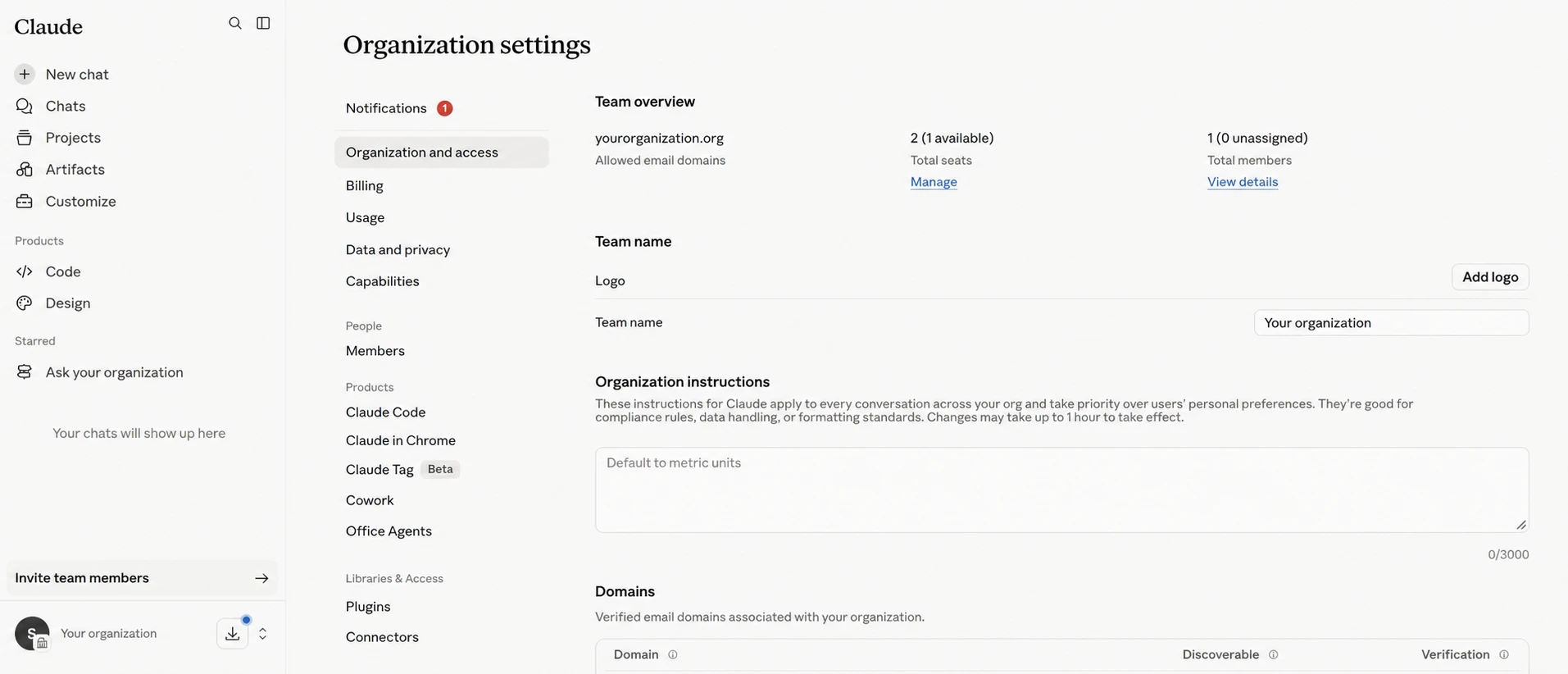
Claude Team organization settings in July 2026.
The first admin steps
Once the workspace exists, a handful of one-time admin steps determine how the account works for everyone who joins later.
Verify your domain. Verification proves that your organization controls its email domain. After verification, you can configure organization discovery and restrict people from creating separate Claude organizations with that domain. Verification alone does not change anyone’s access, so review the related settings after the domain is confirmed.
Set up SSO if you use Google Workspace or a similar identity provider. Single sign-on requires domain verification first. It gives staff one fewer login to manage and lets the organization control access through its existing identity system. Test the setup before requiring SSO so people are not locked out by a missing assignment or configuration error.
Write organization instructions. Team admins can set shared instructions that apply to every staff member’s conversations. Two kinds of information are useful here:
- Organizational context — who you are, what you work on, and your organizational writing style. Staff get better first drafts without pasting the same background into every chat.
- Guardrails — standing rules you want applied everywhere. One guardrail we recommend: instruct Claude to check web-search queries for sensitive or confidential details before searching, and to rephrase or ask rather than send them. List what counts as confidential for your organization: campaign targets, investigation details, personnel matters, donor information.
Privacy: two things to tell staff up front
Admins can export everyone’s chat history. Work chats belong to the organization, the same as work email.
A shared chat shares its whole thread, including earlier context the recipient was never meant to see. Skim before sharing, or start sensitive work in a fresh chat.
For what data is safe to put into AI tools at all, see Data security and privacy basics and Is my data used for training?.
Capability settings: our suggested defaults
Team admins decide which capabilities are available to everyone. You can change all of these later; day one only needs a starting point you can explain.
| Setting | Suggested default | Why |
|---|---|---|
| Code execution | On | Lets Claude analyze documents, spreadsheets, and data files — one of the most useful capabilities for ordinary staff work. |
| Network egress (for Claude’s sandbox) | Off unless needed | Turn it on when Claude needs to download public source files or reach an approved external API from its sandbox. Leave it off if your workflows do not need outside network access. |
| Claude Code | On or off for the organization | Claude Code can work directly with files, repositories, and command-line tools, which makes it more flexible for technical and agent-style workflows. On Team, the admin setting applies to everyone. |
| Browser extension (Claude in Chrome) | Off by default | Browsing agents are exposed to prompt injection from the pages they read. On Team, the admin setting applies across the organization, so enable it after the team understands the risks and review expectations. |
| Connectors | Add deliberately | Connect the services your team uses, such as Gmail, Google Drive, Slack, or Microsoft 365. On Team, admins make each connector available across the organization. |
| Skills and plugins | Review before org-wide sharing | User-created skills can contain arbitrary code. Sharing one with the whole org is a software-distribution decision — treat it like one. |
Team has two plan limitations to consider. Admins enable or disable capabilities such as connectors and Claude Code for the organization as a whole; Team does not provide Enterprise’s custom roles for granting different capabilities to different groups. Team also lacks the Enterprise analytics API for usage reporting. These limits may become more relevant as a team grows.
Connectors: give Claude your team’s context
A connector links Claude to a tool your team already uses, such as Google Drive, Gmail, Microsoft 365, Slack, or a project tracker. It lets Claude work with the documents, messages, and other context that a person already has permission to access. A staff member can ask about the actual grant folder or draft an email from the relevant thread instead of copying everything into the chat box first.
Setup notes from real sessions:
- Start with one or two connectors. A document store such as Google Drive and the communication tool your staff uses most, such as Slack, are common starting points. Add another connector when a real workflow calls for it. Each addition expands the information and actions available to Claude, so review its permissions and apply your data rules before enabling it.
- Understand what organization-wide access means. On Team, an Owner enables a connector for the organization, but that does not automatically give every staff member an account or access to the source system. Each person normally authenticates with their own account, and Claude mirrors that person’s existing permissions. Someone who cannot open a Salesforce record or Google Drive file directly should not gain access to it through Claude. Some Enterprise-managed authentication setups work differently, so confirm the connector’s authentication model during setup.
- Use action approvals while a workflow is new. Claude asks permission when a connector tool is about to take an action, such as creating a file, changing a record, or drafting content in another service. These checkpoints let the person inspect the proposed action before it happens. Repeated confirmations can slow down a workflow that uses several trusted tools, so admins can decide whether staff may choose “Always allow” for specific tools. Test the workflow with approvals first. Grant standing permission only when the action is predictable, the source permissions are appropriate, and recovery from a mistake is clear. We recommend using more capable models when Claude will act with less supervision.
Skills and plugins: share what works — carefully
A skill is a folder of files that gives Claude specialized instructions and resources for a repeatable task, such as following your grant-report format, checking a press release, or cleaning a dataset. Every skill contains a SKILL.md file with Markdown instructions. It may also include reference files, templates, or executable scripts. Claude loads the skill when a request matches its description and reads the additional files as needed.
Because a skill can include code as well as written guidance, review every file before sharing it. You can also ask an AI tool to flag suspicious instructions or code as part of that review. Personal skills belong to one user. Organization-wide skills are added by an Owner and appear for everyone. Treat that step like installing software for the team: understand what the skill does, what files or services it can access, and what code it may run.
One useful goal for the first few months is to create a few skills from workflows that several staff members can use. Start with a focused task, test the skill on real examples, and revise it before sharing it more broadly.
Plugins bundle skills with other components such as connectors and sub-agents for a particular tool or job. A connector is the bridge that lets Claude use an external service; an MCP server is one common way that bridge can expose approved data and actions to Claude. Installing a plugin does not bypass your organization’s connector settings or the source system’s permissions. Browse the catalog when a real need comes up and review the bundled components before installing them.
It can be useful to have an owner for the shared skill library: someone who reviews organization-wide additions, removes stale skills, and helps staff turn successful workflows into reusable resources.
Rolling it out to staff
Plan the rollout as a shared learning process. Staff need time to connect their accounts, understand the boundaries, try useful workflows, and ask questions.
- Explain the organization’s approach. Say why the organization is adopting AI, which boundaries apply, and what you hope staff do with it. Our guide to common staff concerns about AI covers the conversations this usually opens.
- Pair the account with your policy. A team workspace plus a one-page policy — what is encouraged, what needs review, what is off-limits — answers the question every cautious staff member is thinking. The AI policy worksheet gets you there in an afternoon.
- Onboard people together. Hold a live meeting or webinar where staff sign in, connect an approved service, and try a basic workflow. Leave room for questions. They often reveal unclear rules, missing instructions, or settings that need another look.
- Follow up with practical sessions. A second session can focus on real workflows, connectors, and skills after people have had time to experiment. Ask a few staff members to show how they used Claude, including what failed or needed review.
- Treat the settings as adjustable. Staff feedback may show that organization instructions need clearer language or that a connector tool can be enabled after training. Review the setup regularly and change it as the team’s work and confidence develop.
- Name an owner. Someone should maintain the admin settings, coordinate follow-up, and give staff a clear place to bring questions.
What changes after setup
Expect to revisit the setup as staff learn what helps: enabling a connector after a pilot, revising the organization instructions after recurring questions, or tightening a permission when a workflow misbehaves. Claude’s menus and plan features change often, so check the current documentation when this guide does not match your screen.
